
Before you start
Two free installs and you are ready. Both are one-time setups.
- Claude, the desktop app from claude.ai/download. The free plan is enough to begin; Pro gives you more headroom for the bigger skills.
- Git, a small free tool your computer needs to pull the skills from GitHub, from git-scm.com/downloads. Download the installer for your system and click through.
Back up your site first
Before you change anything on your live site, take a backup. WordPress: UpdraftPlus. Shopify: duplicate the store. Squarespace or Webflow: duplicate or export. The skills mostly produce plans and documents, but the moment you start editing pages, a backup is your undo button.
1. Install Claude
Claude is an AI assistant from Anthropic. You talk to it in plain English, no coding. It reads your files, runs the skills, and saves every output straight to your folder.
-
Download and install
Go to claude.ai/download and grab the version for your operating system (macOS or Windows). Open the file to install.
-
Sign in
Launch Claude from your Applications folder (Mac) or Start menu (Windows) and sign in with your account.
-
Pick a working folder
Point Claude at a folder for this work (for example, a "SEO" folder on your desktop). Every skill saves its output there, so you always know where your deliverables land.
2. The three modes
Claude has three ways to work. You will live in Cowork for almost everything here.
Chat
Fast answers, quick drafts, a word change here and there. The lightest way in.
Cowork
Keyword workflows, audits, Excel reports, multi-step tasks. Where the skills run. Start here.
Code
Fix site code, build a tool or widget, terminal automation. The power option for developers.
Rule of thumb: use Chat for quick questions, Cowork for the day-to-day SEO work, and Code only when you are touching site code directly.
3. Load the skills
Two ways to add the skills to your Claude. The marketplace is the quick way; keep the zip files as a backup.
Primary method: the marketplace
-
Open the marketplace
In Claude, open Customize then the Plugins tab, find the Personal plugins section, click the + button, then Add marketplace.
-
Paste the source
When prompted, paste this and confirm:
SourceStudioHawk/hawk-academy-skillsOn Claude Code (the CLI) you can instead run
/plugin marketplace add StudioHawk/hawk-academy-skills, then/plugin install hawk-academy-skills@hawkos-lite, then/reload-plugins. -
Toggle the skills on
The Hawk Academy skills appear in the list. Switch them on. Type
/in the composer to see them.
Backup method: zip files
If the marketplace gives you any trouble, install any skill straight from its zip, available in your HawkOS Lite hub:
Zip install
Download the skill's zip from HawkOS Lite, drag it into a new Claude chat, and click Install. (Or use Customize → Add Skill → Upload.)
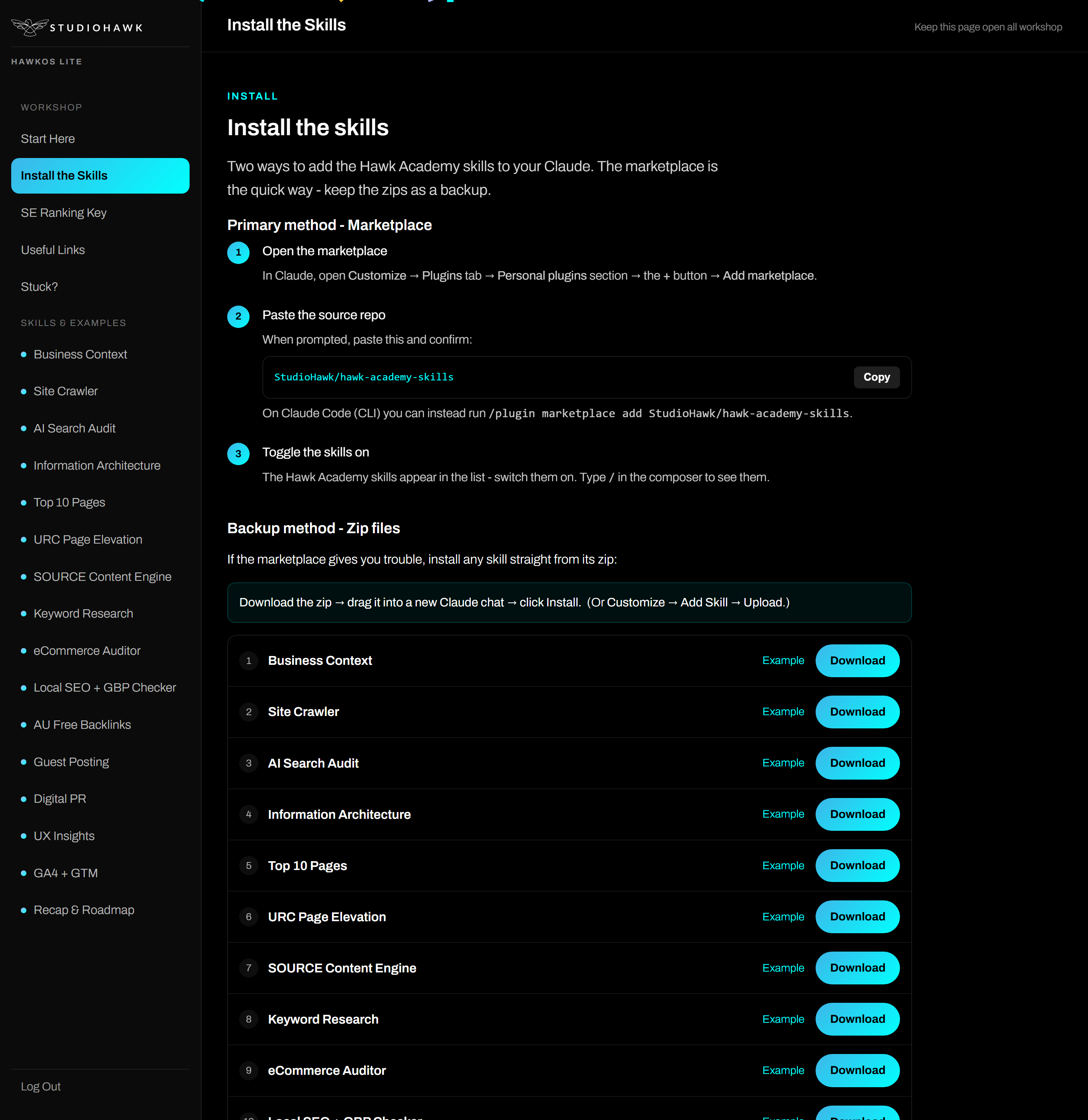
Your HawkOS Lite hub holds both install paths and a download for every skill.
4. Connect SE Ranking (for the research skills)
A few skills pull live keyword and rank data (Information Architecture, Keyword Research, the SOURCE Content Engine). Those need SE Ranking connected. The rest of the toolkit works without it.
- Add SE Ranking as a custom connector via Customize → Connectors (or at claude.ai/settings/connectors), then connect your key.
- On Claude Code, run
claude mcp add --transport http se-ranking https://api.seranking.com/mcpand authenticate with/mcp.
Your API key
You will use your own SE Ranking API key from the SE Ranking API dashboard (a paid plan). If your HawkOS Lite access includes a shared key, it is shown inside the hub. The exact connector menu can vary by Claude version, so check the live menu or the settings link if a step looks different.
5. Run each skill
Every skill has a plain-English trigger. Type it in Cowork, answer the couple of questions it asks, and it saves the output to your folder. Start with Business Context: it is written once and read by every other skill, so you never re-explain your business.
| Skill | Trigger | What it does |
|---|---|---|
| Business Context | /business-context | Answer 10 quick questions once. Every other skill reads the profile, so you never re-explain your business. Run this first. |
| Site Crawler | /site-crawler | A free Screaming Frog alternative. Crawls your site and explains broken links, redirects and missing titles or metas in plain English. |
| AI Search Audit | audit my site | A baseline SEO, GEO and AEO audit as a Word doc plus PDF. Scores readiness and tells you what to fix first. The foundation everything else works from. |
| Information Architecture | /information-architecture | Maps a keyword to every page, pulls live search volumes, vets each one keep or remove, and hands back a sorted spreadsheet (IA Map + Vetting Log). |
| Top 10 Pages | /top-10-pages | Turns the audit and IA into your ten highest-value pages to create or optimize, and nominates a pillar plus its spokes. |
| URC Page Elevation | /urc-elevation | Runs each priority page through Uniqueness, Relevance and Credibility, starting with an intent gate. One file per page. |
| SOURCE Content Engine | /source-content-engine | Keyword research, a pillar-and-spoke cluster, and writer-ready briefs in a single run. |
| Keyword Research | /keyword-research | Live keyword data (volume, CPC, intent, difficulty) from SE Ranking, expanded into a clustered, vetted list. |
| eCommerce Auditor | audit an online store | A store-wide eCommerce SEO audit: category coverage, Product schema, product-page best practice, and a prioritized action plan. |
| Local SEO + GBP Checker | local SEO audit | A Google Business Profile scorecard, NAP consistency report, review analysis and a local action plan. |
| AU Free Backlinks | /au-backlinks | Audits your free Australian backlink and citation opportunities and writes a personalized tracker. |
| Guest Posting | /guest-posting | Finds, vets and helps you pitch guest-post opportunities, with a prospect tracker and ready-to-send emails. |
| Digital PR | /digital-pr-raids | A data-led digital PR campaign through RAIDS: ideation, dataset, media list, pitch and coverage tracker. |
| UX Insights | /ux-insights | Installs Microsoft Clarity, then diagnoses UX drop-off from your data and maps each signal to a prioritized fix. |
| GA4 + GTM | set up my GA4 | A five-stage walkthrough to stand up GA4 and GTM tracking, import the starter container, and clone a Looker Studio dashboard. |
| Recap & Roadmap | /recap-roadmap | Reads your whole workspace and lays out a phased 6-month roadmap (Months 1-2, 3-4, 5-6) with objectives, actions, owners and KPIs. |
The order that works
Business Context, then Site Crawler and AI Search Audit, then Information Architecture, then Top 10 Pages, then URC and the SOURCE Content Engine. Offsite and tracking skills next. Finish with Recap & Roadmap, which reads everything you produced and builds your plan.
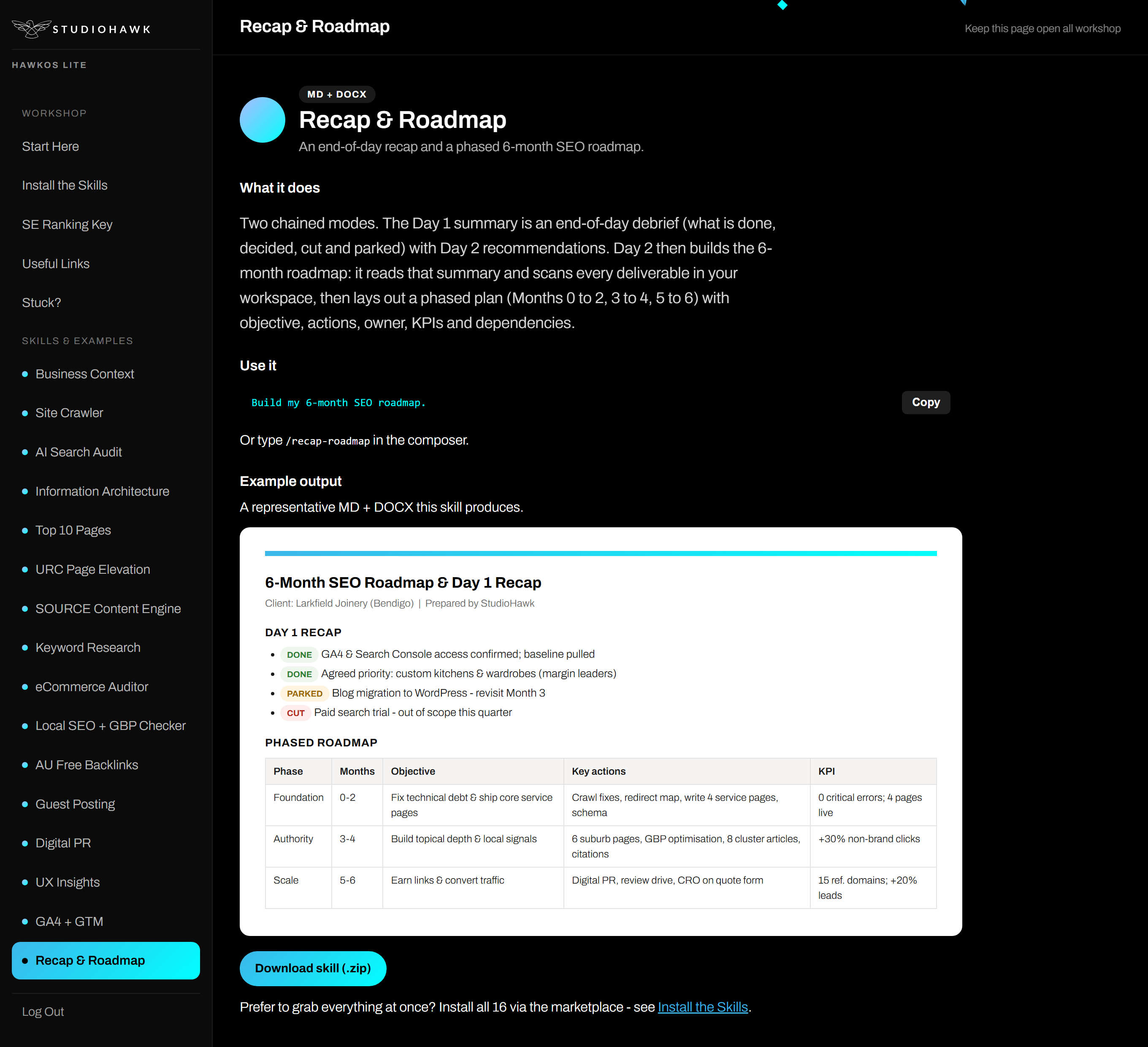
Type "build my 6-month SEO roadmap" and the Recap & Roadmap skill returns a phased plan like this.
Tips for better results
The difference between a vague answer and a great one is usually the prompt. Four habits:
- Be specific about your business and market. Not "do keyword research", but "do keyword research for TrueProtein in Australia targeting sports supplements".
- Name the output you want. Say "save as Excel" or "write a Word doc" and Claude will pick the right skill.
- Give Claude your files upfront. Drag in your crawl export, 404 CSV or brief before the task. It reads them automatically.
- Ask follow-ups in the same chat. Claude remembers context: "now filter that to keywords over 500 volume" or "re-run but add the NZ market".
A word of caution
Claude can get things wrong
It can sound confident and still be wrong: hallucinated facts, stats or URLs. Always verify data, numbers and claims before anything goes live. You are the expert; sense-check every output against what you know about your business. Treat it like a sharp intern: it gives you the first draft, your judgement is the final cut.
If you get stuck
The fastest help is usually Claude itself. Paste a screenshot of where you are stuck into the chat and ask it to walk you through the next step. Prompts that work:
- "This isn't working. Here's what I did and what happened. What's wrong?"
- "I'm trying to [goal] but I'm stuck at [step]. Walk me through it."
- "Explain what this means in plain English: [paste the error]."
- "I don't know where to start with [task]. What's the first step?"
Everything you need also lives in your HawkOS Lite hub: every skill, a sample of each output, and the full links library.